- Sort Score
- Num 10 results
- Language All
Results 561 - 570 of 705 for imagem (0.04 seconds)
-
docs/ru/docs/tutorial/request-files.md
`UploadFile` имеет следующие атрибуты:

* `filename`: Строка `str` с исходным именем файла, который был загружен (например, `myimage.jpg`).
* `content_type`: Строка `str` с типом содержимого (MIME type / media type) (например, `image/jpeg`).
Created: Sun Apr 05 07:19:11 GMT 2026 - Last Modified: Thu Mar 19 17:56:20 GMT 2026 - 11.4K bytes - Click Count (0) -
docs/zh-hant/docs/tutorial/sql-databases.md
```

</div>

然後前往 `/docs` 的 UI,你會看到 FastAPI 使用這些模型來「文件化」API,也會用它們來「序列化」與「驗證」資料。

<div class="screenshot">
<img src="/img/tutorial/sql-databases/image01.png">
</div>

## 用多個模型更新應用 { #update-the-app-with-multiple-models }

現在我們稍微「重構」一下這個應用,以提升「安全性」與「彈性」。

如果你檢查前一版的應用,在 UI 中你會看到,到目前為止它讓用戶端自己決定要建立的 `Hero` 的 `id`。😱
Created: Sun Apr 05 07:19:11 GMT 2026 - Last Modified: Fri Mar 20 17:05:38 GMT 2026 - 14.8K bytes - Click Count (0) -
docs/en/docs/deployment/server-workers.md
In the next chapter about [FastAPI in Containers - Docker](docker.md) I'll explain some strategies you could use to handle the other **deployment concepts**.

I'll show you how to **build your own image from scratch** to run a single Uvicorn process. It is a simple process and is probably what you would want to do when using a distributed container management system like **Kubernetes**.

## Recap { #recap }
Created: Sun Apr 05 07:19:11 GMT 2026 - Last Modified: Thu Mar 05 18:13:19 GMT 2026 - 8.2K bytes - Click Count (0) -
docs/es/docs/tutorial/request-files.md
Created: Sun Apr 05 07:19:11 GMT 2026 - Last Modified: Thu Mar 19 18:15:55 GMT 2026 - 7.6K bytes - Click Count (0) -
docs/zh/docs/advanced/stream-data.md
在上面的示例中,虽然按字节流式传输了数据,但响应没有 `Content-Type` 头,因此客户端不知道接收到的数据类型。

你可以创建 `StreamingResponse` 的自定义子类,将 `Content-Type` 头设置为你要流式传输的数据类型。

例如,你可以创建一个 `PNGStreamingResponse`,通过 `media_type` 属性把 `Content-Type` 头设置为 `image/png`:

{* ../../docs_src/stream_data/tutorial002_py310.py ln[6,19:20] hl[20] *}

然后你可以在*路径操作函数*中通过 `response_class=PNGStreamingResponse` 使用这个新类:

{* ../../docs_src/stream_data/tutorial002_py310.py ln[23:27] hl[23] *}
Created: Sun Apr 05 07:19:11 GMT 2026 - Last Modified: Fri Mar 20 14:29:48 GMT 2026 - 5.2K bytes - Click Count (0) -
docs/ja/README.md
### ブラウザUI - 検索UI: http://localhost:8080/ 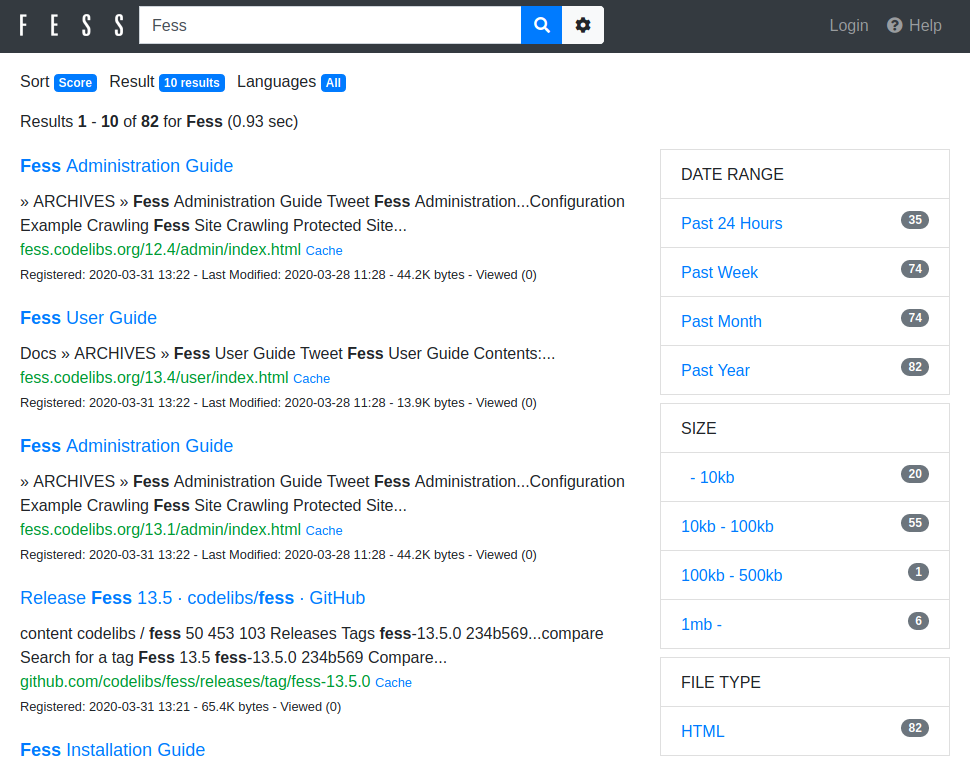 - 管理者UI: http://localhost:8080/admin/ (デフォルトのユーザー名/パスワードはadmin/adminです) 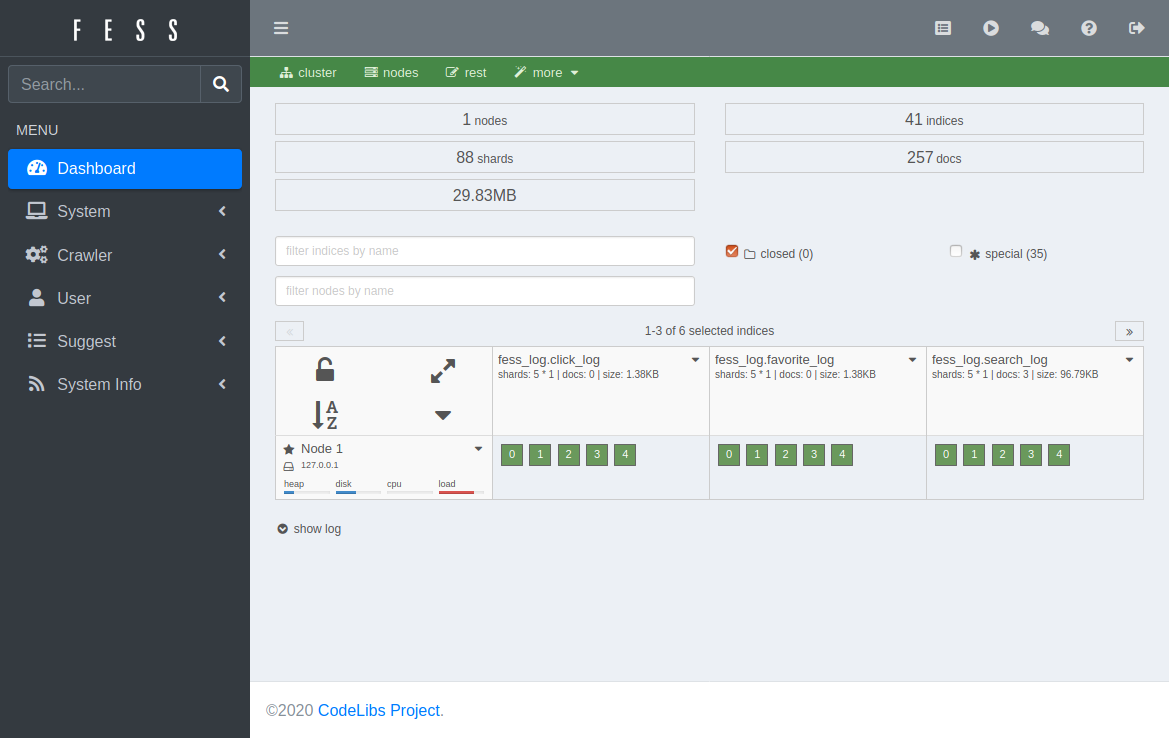
Created: Tue Mar 31 13:07:34 GMT 2026 - Last Modified: Tue Nov 11 22:42:32 GMT 2025 - 8.5K bytes - Click Count (0) -
.github/CODEOWNERS
gradlew.bat                             @gradle/bt-developer-productivity
gradle.properties                       @gradle/bt-developer-productivity
gradle/detekt.yml                       @gradle/bt-developer-productivity
.mailmap
images/
.github/ISSUE_TEMPLATE                  @gradle/bt-product-operations
LICENSE                                 @gradle/bt-product-operations
Created: Wed Apr 01 11:36:16 GMT 2026 - Last Modified: Mon Mar 23 18:38:15 GMT 2026 - 10.8K bytes - Click Count (0) -
src/main/webapp/WEB-INF/view/advance.jsp
		<header>
			<nav class="navbar navbar-expand-md navbar-dark fixed-top bg-dark">
				<div class="container">
					<la:link styleClass="navbar-brand d-inline-flex" href="/">
						<img src="${fe:url('/images/logo-head.png')}"
							alt="<la:message key="labels.header_brand_name" />"
							class="align-items-center" />
					</la:link>
Created: Tue Mar 31 13:07:34 GMT 2026 - Last Modified: Thu Nov 13 05:54:52 GMT 2025 - 14.2K bytes - Click Count (0) -
docs/ko/docs/advanced/openapi-webhooks.md
### 문서 확인하기 { #check-the-docs }

이제 앱을 실행하고 [http://127.0.0.1:8000/docs](http://127.0.0.1:8000/docs)로 이동하세요.

문서에 일반적인 *경로 처리*가 보이고, 이제는 일부 **webhooks**도 함께 보일 것입니다:
Created: Sun Apr 05 07:19:11 GMT 2026 - Last Modified: Fri Mar 20 14:06:26 GMT 2026 - 3.4K bytes - Click Count (0) -
docs/zh-hant/docs/advanced/openapi-webhooks.md
### 查看文件 { #check-the-docs }

現在你可以啟動應用,然後前往 [http://127.0.0.1:8000/docs](http://127.0.0.1:8000/docs)。

你會在文件中看到一般的路徑操作,另外還有一些 webhook:
Created: Sun Apr 05 07:19:11 GMT 2026 - Last Modified: Fri Mar 20 17:05:38 GMT 2026 - 2.6K bytes - Click Count (0)