- Sort Score
- Num 10 results
- Language All
Results 41 - 50 of 213 for Swagger (0.05 seconds)
-
docs/ko/docs/tutorial/first-steps.md
``` ### 대화형 API 문서 { #interactive-api-docs } 이제 [http://127.0.0.1:8000/docs](http://127.0.0.1:8000/docs)로 가봅니다. 자동 대화형 API 문서를 볼 수 있습니다 ([Swagger UI](https://github.com/swagger-api/swagger-ui) 제공): 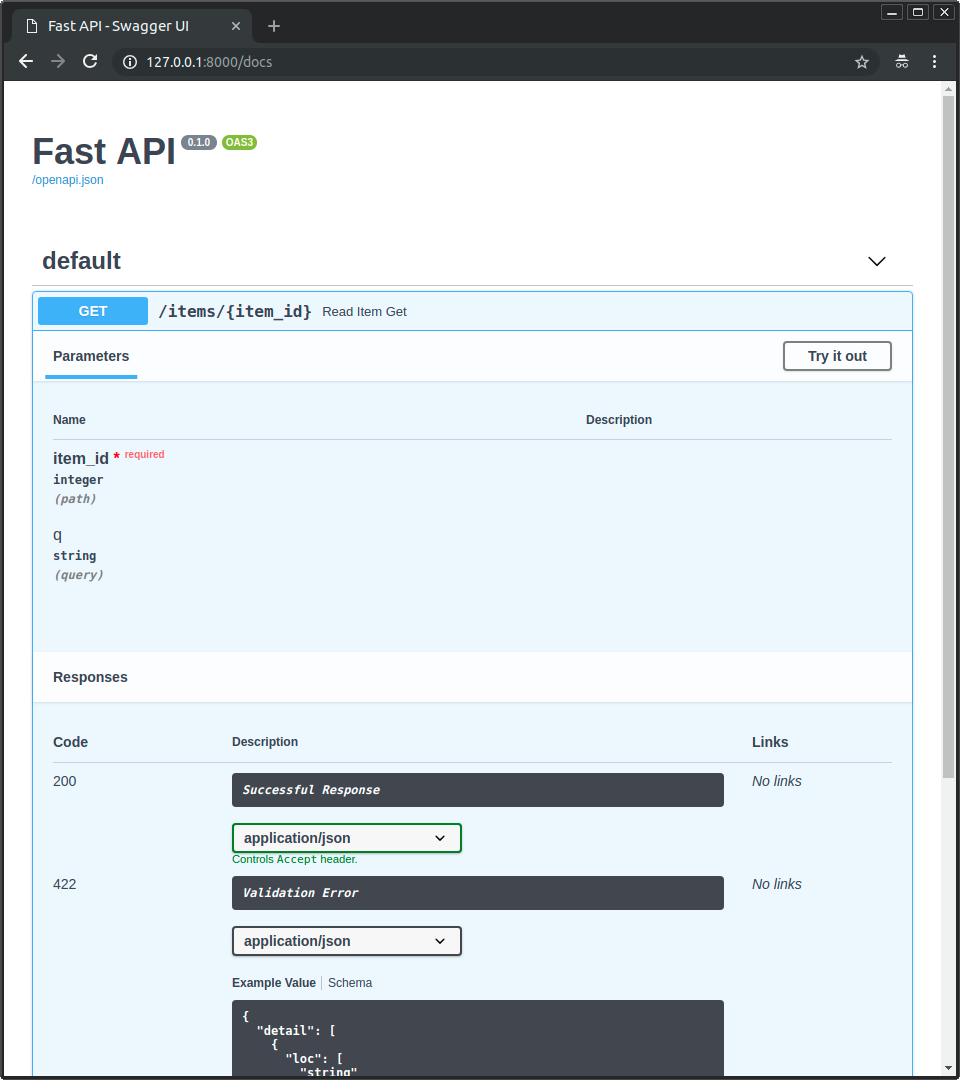 ### 대안 API 문서 { #alternative-api-docs } 그리고 이제, [http://127.0.0.1:8000/redoc](http://127.0.0.1:8000/redoc)로 가봅니다.Created: Sun Apr 05 07:19:11 GMT 2026 - Last Modified: Fri Mar 20 14:06:26 GMT 2026 - 15K bytes - Click Count (0) -
docs/zh-hant/docs/alternatives.md
///

### [Swagger](https://swagger.io/) / [OpenAPI](https://github.com/OAI/OpenAPI-Specification/) { #swagger-openapi }

我想從 Django REST Framework 得到的主要功能是自動 API 文件。

後來我發現有一個使用 JSON(或 YAML,JSON 的延伸)來描述 API 的標準,叫做 Swagger。

而且已有對 Swagger API 的網頁使用者介面。因此,只要能為 API 產生 Swagger 文件,就可以自動使用這個網頁介面。

之後 Swagger 交由 Linux 基金會管理,並更名為 OpenAPI。

因此,談到 2.0 版時常說「Swagger」,而 3+ 版則是「OpenAPI」。
Created: Sun Apr 05 07:19:11 GMT 2026 - Last Modified: Fri Mar 20 17:05:38 GMT 2026 - 20K bytes - Click Count (0) -
docs/zh-hant/docs/tutorial/schema-extra-example.md
但現在 FastAPI 0.99.0 以上使用的 OpenAPI 3.1.0 搭配 JSON Schema 2020-12,以及 Swagger UI 5.0.0 以上版本,整體更加一致,範例會包含在 JSON Schema 中。

### Swagger UI 與 OpenAPI 特定的 `examples` { #swagger-ui-and-openapi-specific-examples }

由於在(2023-08-26 時)Swagger UI 不支援多個 JSON Schema 範例,使用者無法在文件中顯示多個範例。

為了解決此問題,FastAPI `0.103.0` 透過新參數 `openapi_examples` **新增支援** 宣告舊的「OpenAPI 特定」`examples` 欄位。🤓
Created: Sun Apr 05 07:19:11 GMT 2026 - Last Modified: Fri Mar 20 17:05:38 GMT 2026 - 8.4K bytes - Click Count (0) -
docs/zh-hant/docs/index.md
* 互動式 API 文件會自動更新,包含新的 body: 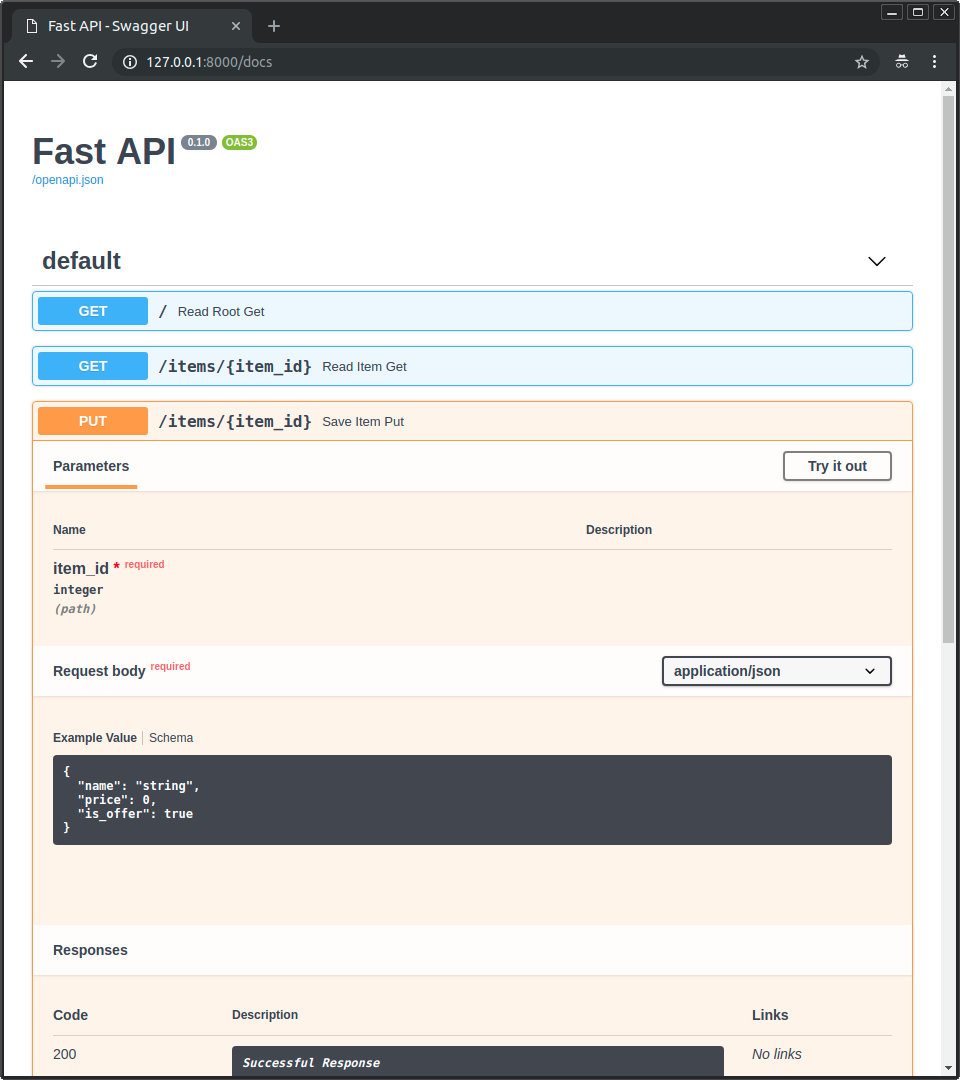 * 點擊「Try it out」按鈕,你可以填寫參數並直接與 API 互動: 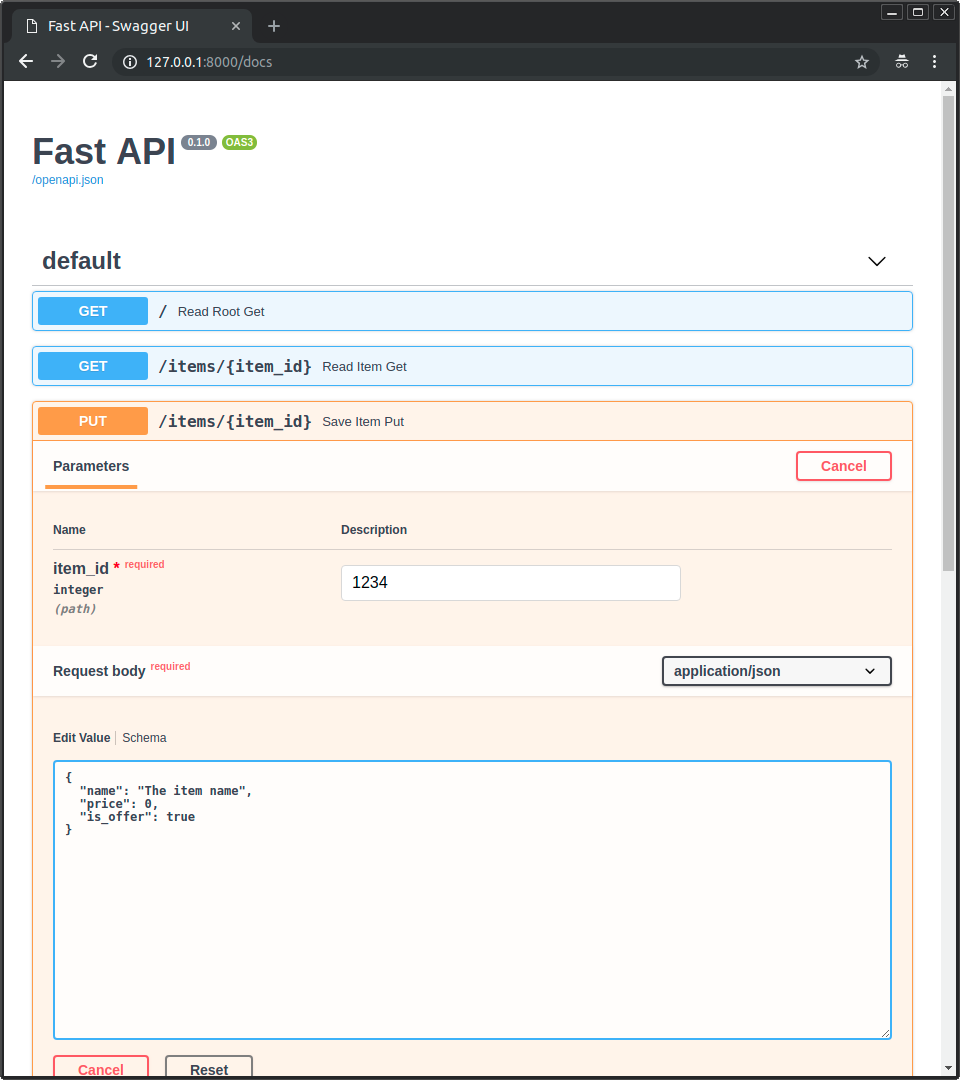 * 然後點擊「Execute」按鈕,使用者介面會與你的 API 溝通、送出參數、取得結果並顯示在螢幕上: 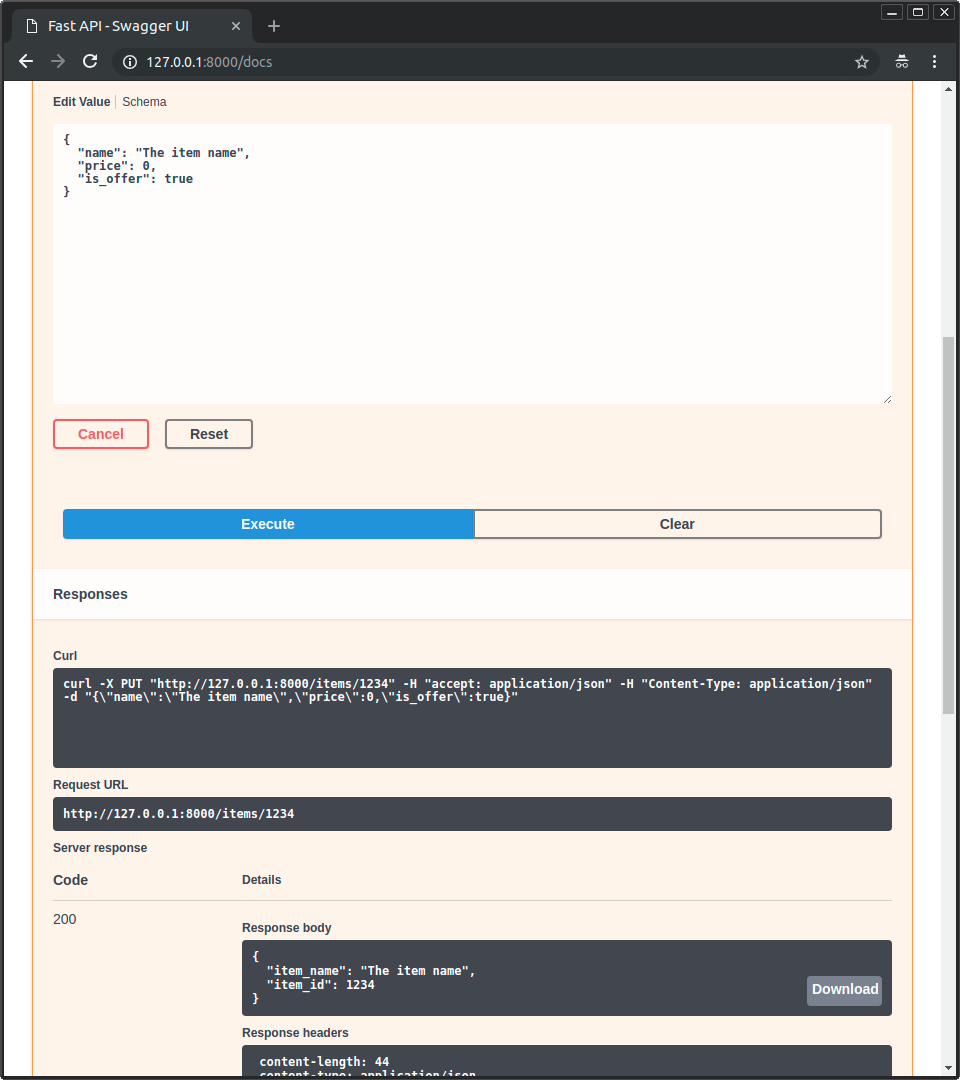
Created: Sun Apr 05 07:19:11 GMT 2026 - Last Modified: Fri Mar 20 17:05:38 GMT 2026 - 20.8K bytes - Click Count (0) -
docs/en/docs/alternatives.md
///

### [Swagger](https://swagger.io/) / [OpenAPI](https://github.com/OAI/OpenAPI-Specification/) { #swagger-openapi }

The main feature I wanted from Django REST Framework was the automatic API documentation.

Then I found that there was a standard to document APIs, using JSON (or YAML, an extension of JSON) called Swagger.
Created: Sun Apr 05 07:19:11 GMT 2026 - Last Modified: Thu Mar 05 18:13:19 GMT 2026 - 22.2K bytes - Click Count (0) -
.github/DISCUSSION_TEMPLATE/questions.yml
Created: Sun Apr 05 07:19:11 GMT 2026 - Last Modified: Thu Aug 03 15:59:41 GMT 2023 - 5.8K bytes - Click Count (0) -
docs/zh-hant/docs/tutorial/first-steps.md
{"message": "Hello World"} ``` ### 互動式 API 文件 { #interactive-api-docs } 現在,前往 [http://127.0.0.1:8000/docs](http://127.0.0.1:8000/docs)。 你將看到自動的互動式 API 文件(由 [Swagger UI](https://github.com/swagger-api/swagger-ui) 提供):  ### 替代 API 文件 { #alternative-api-docs } 現在,前往 [http://127.0.0.1:8000/redoc](http://127.0.0.1:8000/redoc)。Created: Sun Apr 05 07:19:11 GMT 2026 - Last Modified: Fri Mar 20 17:05:38 GMT 2026 - 13.3K bytes - Click Count (0) -
docs/ko/docs/features.md
### 문서 자동화 { #automatic-docs } 대화형 API 문서와 탐색용 웹 사용자 인터페이스를 제공합니다. 프레임워크가 OpenAPI를 기반으로 하기에 여러 옵션이 있으며, 기본으로 2가지가 포함됩니다. * [**Swagger UI**](https://github.com/swagger-api/swagger-ui)로 대화형 탐색이 가능하며 브라우저에서 직접 API를 호출하고 테스트할 수 있습니다.  * [**ReDoc**](https://github.com/Rebilly/ReDoc)을 이용한 대체 API 문서화.Created: Sun Apr 05 07:19:11 GMT 2026 - Last Modified: Fri Mar 20 14:06:26 GMT 2026 - 11K bytes - Click Count (0) -
docs/uk/docs/tutorial/first-steps.md
Тепер перейдіть сюди [http://127.0.0.1:8000/docs](http://127.0.0.1:8000/docs). Ви побачите автоматичну інтерактивну API документацію (надається [Swagger UI](https://github.com/swagger-api/swagger-ui)):  ### Альтернативна API документація { #alternative-api-docs } А тепер перейдіть сюди [http://127.0.0.1:8000/redoc](http://127.0.0.1:8000/redoc).Created: Sun Apr 05 07:19:11 GMT 2026 - Last Modified: Thu Mar 19 18:27:41 GMT 2026 - 18.7K bytes - Click Count (0) -
tests/test_custom_swagger_ui_redirect.py
def test_swagger_ui():
    response = client.get("/docs")
    assert response.status_code == 200, response.text
    assert response.headers["content-type"] == "text/html; charset=utf-8"
    assert "swagger-ui-dist" in response.text
    print(client.base_url)
    assert (
        f"oauth2RedirectUrl: window.location.origin + '{swagger_ui_oauth2_redirect_url}'"
        in response.text
    )
Created: Sun Apr 05 07:19:11 GMT 2026 - Last Modified: Wed Apr 08 04:37:38 GMT 2020 - 1.1K bytes - Click Count (0)