- Sort Score
- Num 10 results
- Language All
Results 21 - 30 of 46 for Mitton (0.04 seconds)
-
docs/en/docs/tutorial/security/first-steps.md
Created: Sun Dec 28 07:19:09 GMT 2025 - Last Modified: Sun Aug 31 09:15:41 GMT 2025 - 8.4K bytes - Click Count (0) -
docs/de/docs/tutorial/security/first-steps.md
Sie werden etwa Folgendes sehen:

<img src="/img/tutorial/security/image01.png">

/// check | Authorize-Button!

Sie haben bereits einen glänzenden, neuen „Authorize“-Button.

Und Ihre *Pfadoperation* hat in der oberen rechten Ecke ein kleines Schloss, auf das Sie klicken können.

///
Created: Sun Dec 28 07:19:09 GMT 2025 - Last Modified: Sat Sep 20 15:10:09 GMT 2025 - 9.9K bytes - Click Count (0) -
.teamcity/README.md
  - Suppose the VCS root you just create is `MyNewVcsRoot`. Set "default branch" to `myTestBranch` where your code exists.
- Click `Create subproject` button at the bottom of the "Subprojects" region of [this page](https://builds.gradle.org/admin/editProject.html?projectId=Gradle&tab=projectGeneralTab)
  - Select `Manually`.
Created: Wed Dec 31 11:36:14 GMT 2025 - Last Modified: Wed Mar 06 23:02:25 GMT 2024 - 4K bytes - Click Count (0) -
docs/en/docs/advanced/security/http-basic-auth.md
    * It contains the `username` and `password` sent.

{* ../../docs_src/security/tutorial006_an_py39.py hl[4,8,12] *}

When you try to open the URL for the first time (or click the "Execute" button in the docs) the browser will ask you for your username and password:

<img src="/img/tutorial/security/image12.png">

## Check the username { #check-the-username }

Here's a more complete example.
Created: Sun Dec 28 07:19:09 GMT 2025 - Last Modified: Sun Aug 31 09:15:41 GMT 2025 - 5K bytes - Click Count (0) -
build-logic/binary-compatibility/src/main/groovy/gradlebuild/EnrichedReportRenderer.groovy
                    document.body.appendChild(downloadLink);

                    downloadLink.click();
                }
            </script>
            <a class="btn btn-info" role="button" onclick="acceptAllErrorCorrections()">Accept Changes for all Errors</a>
        """
    }

    /**
Created: Wed Dec 31 11:36:14 GMT 2025 - Last Modified: Tue Feb 07 20:38:43 GMT 2023 - 7.2K bytes - Click Count (0) -
.github/DISCUSSION_TEMPLATE/questions.yml
      description: |
        After submitting this, I commit to one of:

          * Read open questions until I find 2 where I can help someone and add a comment to help there.
          * I already hit the "watch" button in this repository to receive notifications and I commit to help at least 2 people that ask questions in the future.
Created: Sun Dec 28 07:19:09 GMT 2025 - Last Modified: Thu Aug 03 15:59:41 GMT 2023 - 5.8K bytes - Click Count (0) -
docs/de/docs/advanced/security/http-basic-auth.md
    * Es enthält den gesendeten `username` und das gesendete `password`.

{* ../../docs_src/security/tutorial006_an_py39.py hl[4,8,12] *}

Wenn Sie versuchen, die URL zum ersten Mal zu öffnen (oder in der Dokumentation auf den Button „Execute“ zu klicken), wird der Browser Sie nach Ihrem Benutzernamen und Passwort fragen:

<img src="/img/tutorial/security/image12.png">

## Den Benutzernamen überprüfen { #check-the-username }
Created: Sun Dec 28 07:19:09 GMT 2025 - Last Modified: Sat Sep 20 15:10:09 GMT 2025 - 6.2K bytes - Click Count (0) -
docs/en/docs/index.md
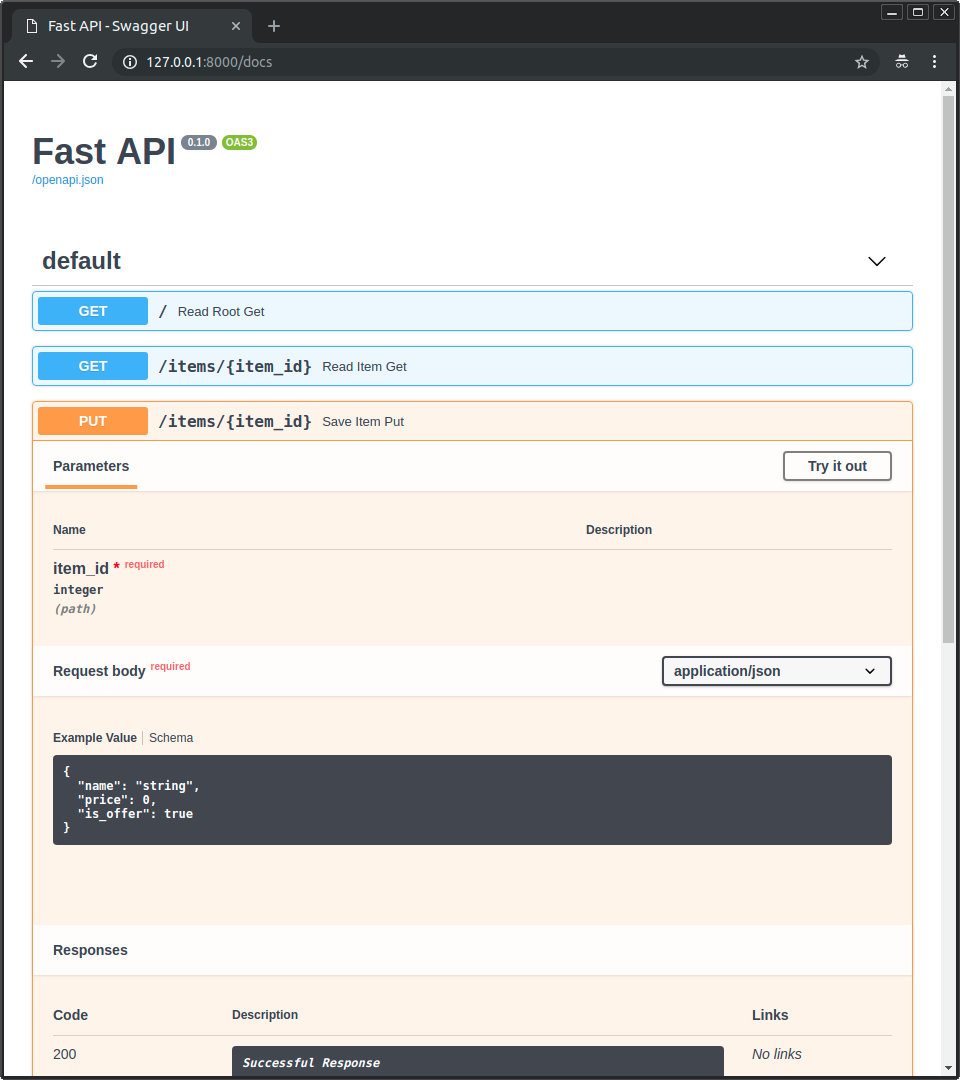 * Click on the button "Try it out", it allows you to fill the parameters and directly interact with the API: 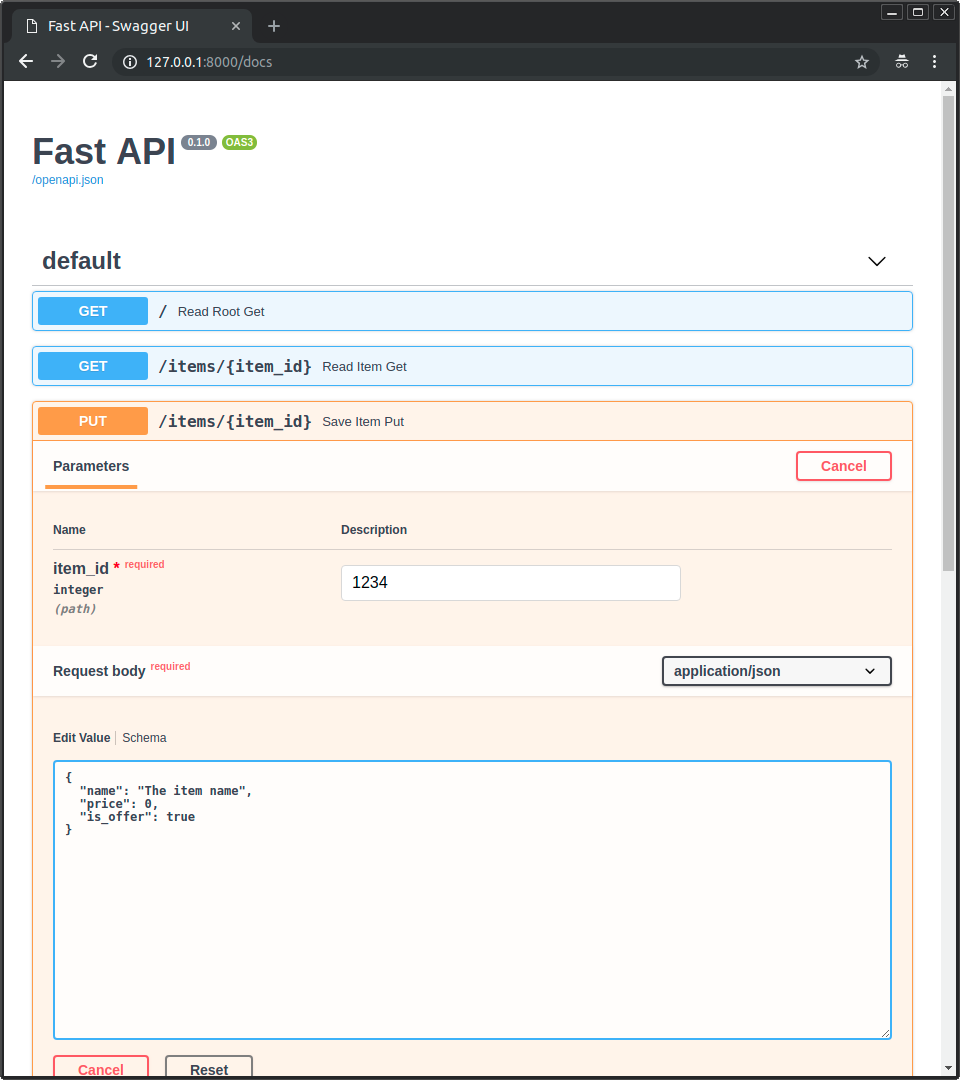 * Then click on the "Execute" button, the user interface will communicate with your API, send the parameters, get the results and show them on the screen:
Created: Sun Dec 28 07:19:09 GMT 2025 - Last Modified: Thu Dec 25 11:01:37 GMT 2025 - 23.5K bytes - Click Count (0) -
CONTRIBUTING.md
#### Accepting multiple changes

If you have multiple changes to accept (and you're sure they ought to be accepted instead of corrected), you can use the `Accept Changes for all Errors` button to speed the process.
This button will cause a Javascript alert dialog to appear asking you to type a reason for accepting the changes, e.g. "Added new API for Gradle 8.x".
Created: Wed Dec 31 11:36:14 GMT 2025 - Last Modified: Tue Nov 25 06:57:22 GMT 2025 - 19K bytes - Click Count (0) -
docs/en/docs/_llm-test.md
* the deployment
* to deploy

* the SDK
* the software development kit

* the `APIRouter`
* the `requirements.txt`
* the Bearer Token
* the breaking change
* the bug
* the button
* the callable
* the code
* the commit
* the context manager
* the coroutine
* the database session
* the disk
* the domain
* the engine
* the fake X
* the HTTP GET method
* the item
Created: Sun Dec 28 07:19:09 GMT 2025 - Last Modified: Thu Dec 11 14:48:47 GMT 2025 - 11.4K bytes - Click Count (0)