- Sort Score
- Num 10 results
- Language All
Results 81 - 90 of 1,571 for Docs (0.02 seconds)
-
build-tools-internal/src/main/java/org/elasticsearch/gradle/internal/release/ReleaseToolsPlugin.java
            task.setReleaseNotesIndexFile(projectDirectory.file("docs/reference/release-notes.asciidoc"));

            task.setReleaseNotesTemplate(projectDirectory.file(RESOURCES + "templates/release-notes.asciidoc"));
            task.setReleaseNotesFile(
                projectDirectory.file(String.format("docs/reference/release-notes/%d.%d.asciidoc", version.getMajor(), version.getMinor()))
            );
Created: Wed Apr 08 16:19:15 GMT 2026 - Last Modified: Fri Sep 24 10:57:02 GMT 2021 - 4.8K bytes - Click Count (0) -
docs/distributed/iam-import-with-missing-entities.sh
if [ ! -f ./mc ]; then
	wget --quiet -O mc https://dl.minio.io/client/mc/release/linux-amd64/mc &&
		chmod +x mc
fi

mc -v

# Start LDAP server
echo "Copying docs/distributed/samples/bootstrap-complete.ldif => minio-iam-testing/ldap/50-bootstrap.ldif"
cp docs/distributed/samples/bootstrap-complete.ldif minio-iam-testing/ldap/50-bootstrap.ldif || exit 1
cd ./minio-iam-testing
make docker-images
make docker-run
cd -
Created: Sun Apr 05 19:28:12 GMT 2026 - Last Modified: Mon Nov 11 15:01:29 GMT 2024 - 4.5K bytes - Click Count (1) -
scripts/playwright/separate_openapi_schemas/image05.py
    page = context.new_page()
    page.goto("http://localhost:8000/docs")
    page.get_by_role("button", name="Item", exact=True).click()
    page.set_viewport_size({"width": 960, "height": 700})
    # Manually add the screenshot
    page.screenshot(
        path="docs/en/docs/img/tutorial/separate-openapi-schemas/image05.png"
    )

    # ---------------------
    context.close()
Created: Sun Apr 05 07:19:11 GMT 2026 - Last Modified: Fri Sep 13 09:14:46 GMT 2024 - 984 bytes - Click Count (0) -
docs/en/docs/advanced/behind-a-proxy.md
You can check it at [http://127.0.0.1:8000/docs](http://127.0.0.1:8000/docs):

<img src="/img/tutorial/behind-a-proxy/image01.png">

But if we access the docs UI at the "official" URL using the proxy with port `9999`, at `/api/v1/docs`, it works correctly! 🎉

You can check it at [http://127.0.0.1:9999/api/v1/docs](http://127.0.0.1:9999/api/v1/docs):

<img src="/img/tutorial/behind-a-proxy/image02.png">

Right as we wanted it. ✔️
Created: Sun Apr 05 07:19:11 GMT 2026 - Last Modified: Thu Mar 05 18:13:19 GMT 2026 - 15.8K bytes - Click Count (0) -
scripts/playwright/separate_openapi_schemas/image02.py
    page = context.new_page()
    page.goto("http://localhost:8000/docs")
    page.get_by_text("GET/items/Read Items").click()
    page.get_by_role("button", name="Try it out").click()
    page.get_by_role("button", name="Execute").click()
    # Manually add the screenshot
    page.screenshot(
        path="docs/en/docs/img/tutorial/separate-openapi-schemas/image02.png"
    )

    # ---------------------
Created: Sun Apr 05 07:19:11 GMT 2026 - Last Modified: Fri Sep 13 09:14:46 GMT 2024 - 1K bytes - Click Count (0) -
docs/ko/docs/advanced/sub-applications.md
### 자동 API 문서 확인 { #check-the-automatic-api-docs }

이제 `fastapi` 명령어를 실행하세요:

<div class="termy">

```console
$ fastapi dev

<span style="color: green;">INFO</span>:     Uvicorn running on http://127.0.0.1:8000 (Press CTRL+C to quit)
```

</div>

그리고 [http://127.0.0.1:8000/docs](http://127.0.0.1:8000/docs)에서 문서를 여세요.

메인 앱의 자동 API 문서를 보게 될 것이며, 메인 앱 자체의 _경로 처리_만 포함됩니다:
Created: Sun Apr 05 07:19:11 GMT 2026 - Last Modified: Fri Mar 20 14:06:26 GMT 2026 - 3.4K bytes - Click Count (0) -
helm/minio/values.yaml
## Pod priority settings
## ref: https://kubernetes.io/docs/concepts/configuration/pod-priority-preemption/
##
priorityClassName: ""

## Pod runtime class name
## ref https://kubernetes.io/docs/concepts/containers/runtime-class/
##
runtimeClassName: ""

## Set default rootUser, rootPassword
## rootUser and rootPassword is generated when not set
Created: Sun Apr 05 19:28:12 GMT 2026 - Last Modified: Tue Aug 12 18:20:36 GMT 2025 - 19.7K bytes - Click Count (1) -
docs/en/docs/index.md
### Interactive API docs { #interactive-api-docs } Now go to [http://127.0.0.1:8000/docs](http://127.0.0.1:8000/docs). You will see the automatic interactive API documentation (provided by [Swagger UI](https://github.com/swagger-api/swagger-ui)): 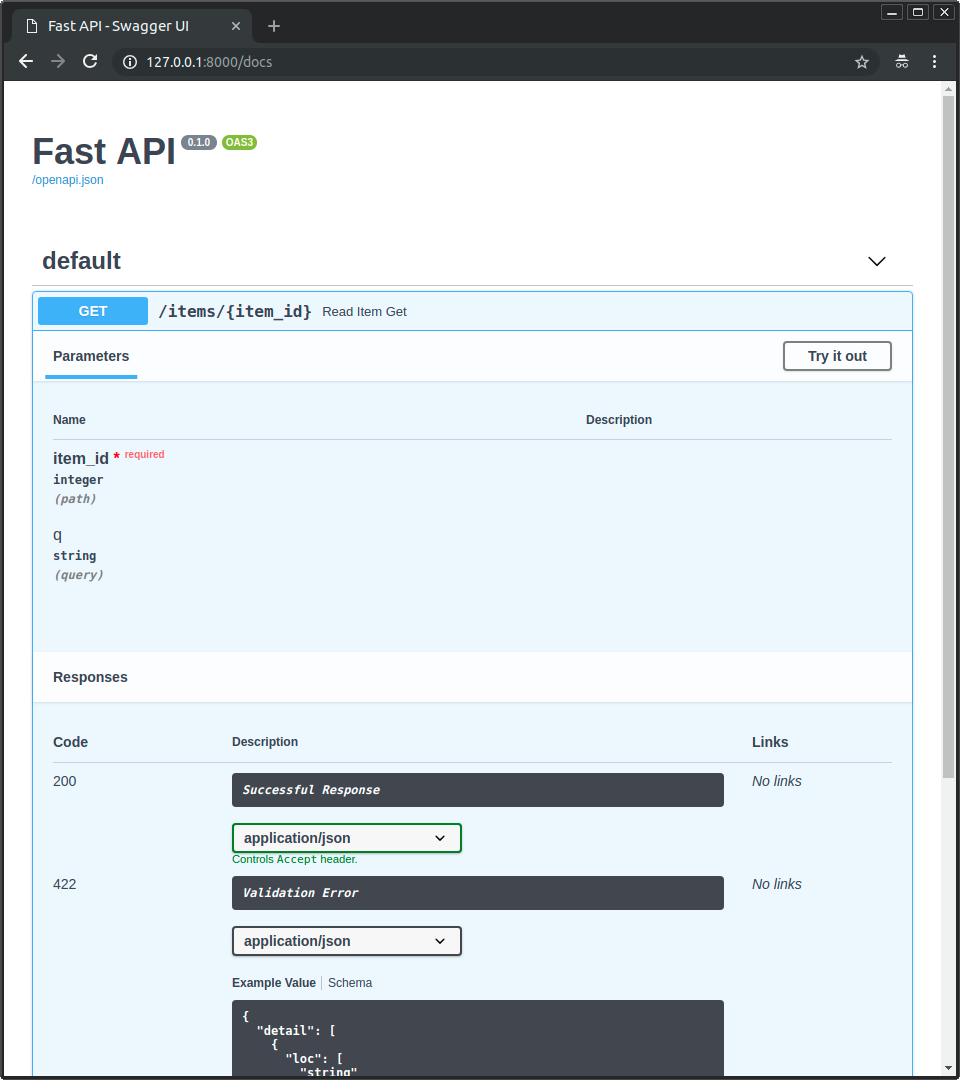 ### Alternative API docs { #alternative-api-docs }Created: Sun Apr 05 07:19:11 GMT 2026 - Last Modified: Sat Mar 07 09:29:03 GMT 2026 - 21.4K bytes - Click Count (0) -
docs/ja/docs/advanced/sub-applications.md
### 自動 API ドキュメントの確認 { #check-the-automatic-api-docs }

では、`fastapi` コマンドを実行します:

<div class="termy">

```console
$ fastapi dev

<span style="color: green;">INFO</span>:     Uvicorn running on http://127.0.0.1:8000 (Press CTRL+C to quit)
```

</div>

そして、[http://127.0.0.1:8000/docs](http://127.0.0.1:8000/docs) を開きます。

メインアプリ用の自動 API ドキュメントが表示され、そのアプリ自身の path operation のみが含まれます:
Created: Sun Apr 05 07:19:11 GMT 2026 - Last Modified: Fri Mar 20 14:07:17 GMT 2026 - 3.5K bytes - Click Count (0) -
docs/zh/docs/advanced/sub-applications.md
### 查看自动 API 文档 { #check-the-automatic-api-docs }

现在,运行 `fastapi` 命令:

<div class="termy">

```console
$ fastapi dev

<span style="color: green;">INFO</span>:     Uvicorn running on http://127.0.0.1:8000 (Press CTRL+C to quit)
```

</div>

然后在 [http://127.0.0.1:8000/docs](http://127.0.0.1:8000/docs) 打开文档。

下图显示的是主应用 API 文档,只包括其自有的*路径操作*。
Created: Sun Apr 05 07:19:11 GMT 2026 - Last Modified: Fri Mar 20 17:06:37 GMT 2026 - 2.5K bytes - Click Count (0)