- Sort Score
- Num 10 results
- Language All
Results 71 - 80 of 267 for 8080 (0.02 seconds)
-
compat/maven-compat/src/test/java/org/apache/maven/repository/MirrorProcessorTest.java
        assertTrue(DefaultMirrorSelector.isExternalRepo(getRepo("foo", "http://")));
        // these are local
        assertFalse(DefaultMirrorSelector.isExternalRepo(getRepo("foo", "http://localhost:8080")));
        assertFalse(DefaultMirrorSelector.isExternalRepo(getRepo("foo", "http://127.0.0.1:9090")));
        assertFalse(DefaultMirrorSelector.isExternalRepo(getRepo("foo", "file://localhost/somepath")));
Created: Sun Apr 05 03:35:12 GMT 2026 - Last Modified: Fri Oct 25 12:31:46 GMT 2024 - 10.7K bytes - Click Count (0) -
src/test/java/org/codelibs/fess/sso/oic/OpenIdConnectAuthenticatorTest.java
        assertEquals("", scope);
    }

    @Test
    public void test_buildDefaultRedirectUrl_noBaseUrl() {
        final String url = authenticator.buildDefaultRedirectUrl();
        assertEquals("http://localhost:8080/sso/", url);
    }

    @Test
    public void test_logout_returnsNull() {
        assertNull(authenticator.logout(null));
    }

    @Test
    public void test_getResponse_returnsNull() {
Created: Tue Mar 31 13:07:34 GMT 2026 - Last Modified: Thu Jan 15 12:54:47 GMT 2026 - 11K bytes - Click Count (0) -
docs/bigdata/README.md
## **3. Configure Hadoop, Spark, Hive to use MinIO** After successful installation navigate to the Ambari UI `http://<ambari-server>:8080/` and login using the default credentials: [**_username: admin, password: admin_**] 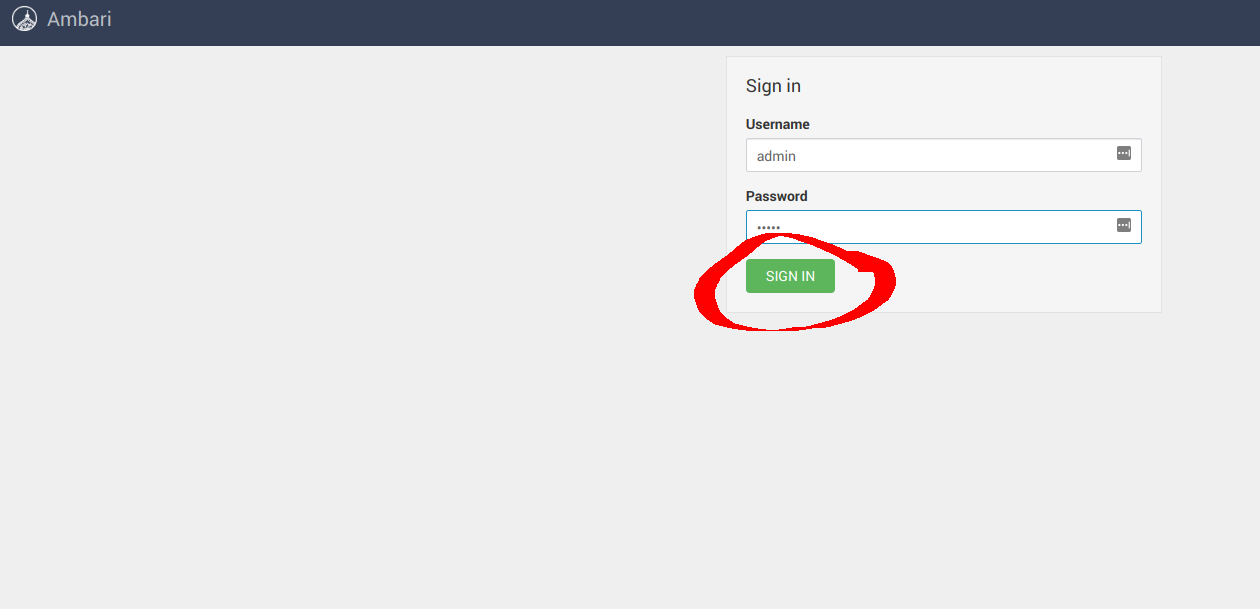 ### **3.1 Configure Hadoop**
Created: Sun Apr 05 19:28:12 GMT 2026 - Last Modified: Tue Aug 12 18:20:36 GMT 2025 - 14.7K bytes - Click Count (0) -
.github/workflows/iam-integrations.yaml
Harshavardhana <******@****.***> 1744208919 -0700
Created: Sun Apr 05 19:28:12 GMT 2026 - Last Modified: Wed Apr 09 14:28:39 GMT 2025 - 5.3K bytes - Click Count (0) -
internal/config/notify/help.go
)

// Help template inputs for all notification targets
var (
	HelpWebhook = config.HelpKVS{
		config.HelpKV{
			Key:         target.WebhookEndpoint,
			Description: "webhook server endpoint e.g. http://localhost:8080/minio/events",
			Type:        "url",
			Sensitive:   true,
		},
		config.HelpKV{
			Key:         target.WebhookAuthToken,
			Description: "opaque string or JWT authorization token",
			Optional:    true,
Created: Sun Apr 05 19:28:12 GMT 2026 - Last Modified: Fri Sep 06 23:06:30 GMT 2024 - 19.2K bytes - Click Count (0) -
src/main/config/openapi/openapi-user.yaml
    name: Apache 2.0
    url: http://www.apache.org/licenses/LICENSE-2.0.html
  version: 14.8.0
externalDocs:
  description: API Documentation
  url: https://fess.codelibs.org/14.8/api/
servers:
  - url: http://localhost:8080/api/v1
tags:
  - name: search
    description: Search operations
  - name: popularword
    description: Popular word operations
  - name: monitor
    description: Monitoring operations
  - name: suggest
Created: Tue Mar 31 13:07:34 GMT 2026 - Last Modified: Thu May 09 06:31:27 GMT 2024 - 21.6K bytes - Click Count (0) -
docs/ru/docs/tutorial/cors.md
Чтобы это работало, у бэкенда на `:80` должен быть список "разрешённых источников" ("allowed origins").

В таком случае этот список должен содержать `http://localhost:8080`, чтобы фронтенд на `:8080` работал корректно.

## Подстановочный символ "*" { #wildcards }
Created: Sun Apr 05 07:19:11 GMT 2026 - Last Modified: Thu Mar 19 17:56:20 GMT 2026 - 8.5K bytes - Click Count (0) -
src/test/java/org/codelibs/fess/cors/CorsHandlerTest.java
    }

    // Test process method with multiple origins
    @Test
    public void test_processWithMultipleOrigins() {
        String[] testOrigins = { "https://example.com", "https://test.example.com", "http://localhost:8080" };

        for (String origin : testOrigins) {
            processCalled = false;
            responseHeaders.clear();

            HttpServletRequest request = createMockRequest();
Created: Tue Mar 31 13:07:34 GMT 2026 - Last Modified: Sat Mar 21 06:04:58 GMT 2026 - 26.3K bytes - Click Count (0) -
docs/tr/docs/tutorial/cors.md
Created: Sun Apr 05 07:19:11 GMT 2026 - Last Modified: Fri Mar 20 07:53:17 GMT 2026 - 5.8K bytes - Click Count (0) -
docs/es/docs/tutorial/cors.md
Para lograr esto, el backend `:80` debe tener una lista de "orígenes permitidos".

En este caso, la lista tendría que incluir `http://localhost:8080` para que el frontend `:8080` funcione correctamente.

## Comodines { #wildcards }
Created: Sun Apr 05 07:19:11 GMT 2026 - Last Modified: Thu Mar 19 18:15:55 GMT 2026 - 5.6K bytes - Click Count (0)