- Sort Score
- Num 10 results
- Language All
Results 461 - 470 of 768 for Img (0.01 seconds)
-
docs/uk/docs/advanced/openapi-webhooks.md
Тепер ви можете запустити свій застосунок і перейти за адресою [http://127.0.0.1:8000/docs](http://127.0.0.1:8000/docs).

Ви побачите у своїй документації звичайні *операції шляху*, а також деякі **вебхуки**:
Created: Sun Apr 05 07:19:11 GMT 2026 - Last Modified: Thu Mar 19 18:27:41 GMT 2026 - 4.7K bytes - Click Count (0) -
docs/ru/docs/advanced/openapi-webhooks.md
Теперь вы можете запустить приложение и перейти по ссылке [http://127.0.0.1:8000/docs](http://127.0.0.1:8000/docs).

Вы увидите, что в документации есть обычные операции пути, а также появились вебхуки:
Created: Sun Apr 05 07:19:11 GMT 2026 - Last Modified: Thu Mar 19 17:56:20 GMT 2026 - 4.9K bytes - Click Count (0) -
docs/de/docs/features.md
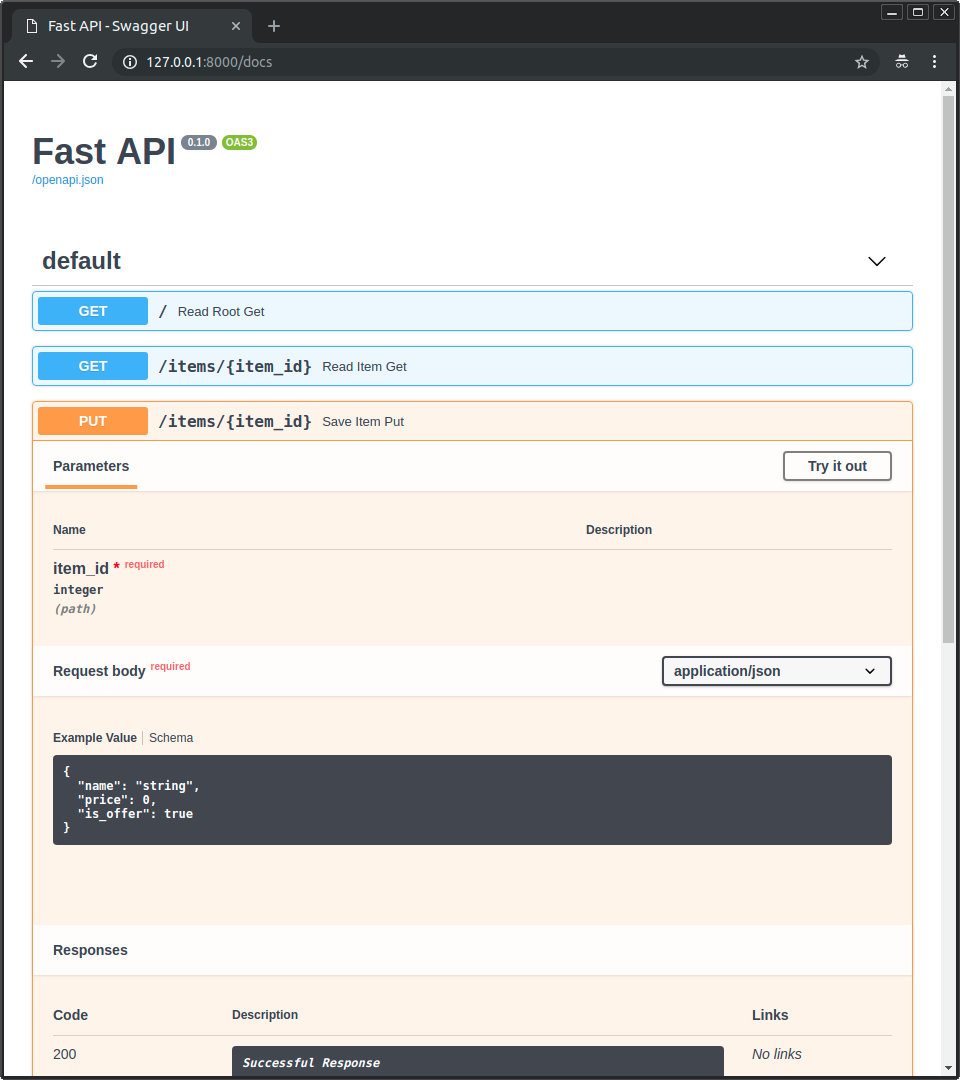 * Alternative API-Dokumentation mit [**ReDoc**](https://github.com/Rebilly/ReDoc). 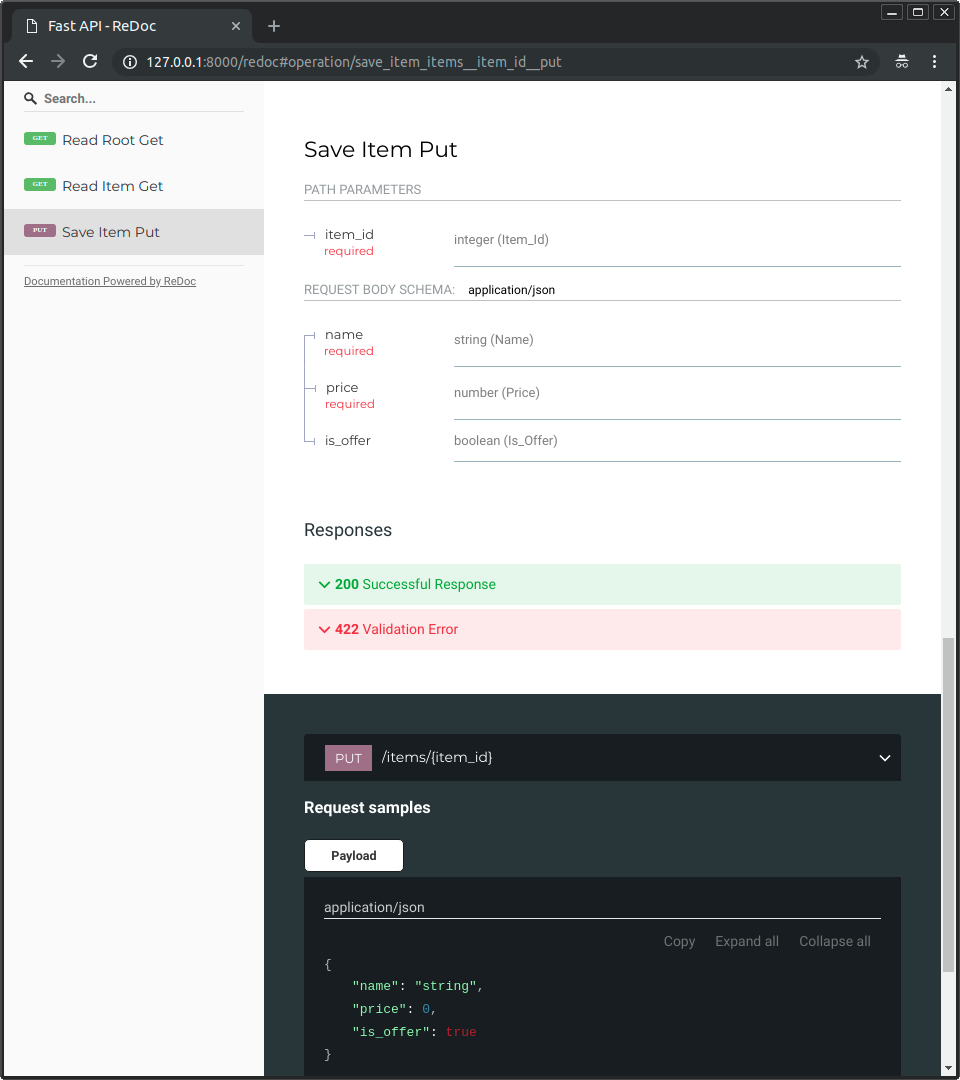 ### Nur modernes Python { #just-modern-python }
Created: Sun Apr 05 07:19:11 GMT 2026 - Last Modified: Thu Mar 19 17:58:09 GMT 2026 - 10.3K bytes - Click Count (0) -
docs/uk/docs/tutorial/schema-extra-example.md
{* ../../docs_src/schema_extra_example/tutorial003_an_py310.py hl[22:29] *}

### Приклад у UI документації { #example-in-the-docs-ui }

За допомогою будь-якого з наведених вище методів це виглядатиме так у `/docs`:

<img src="/img/tutorial/body-fields/image01.png">

### `Body` з кількома `examples` { #body-with-multiple-examples }

Звичайно, ви також можете передати кілька `examples`:
Created: Sun Apr 05 07:19:11 GMT 2026 - Last Modified: Thu Mar 19 18:27:41 GMT 2026 - 13.3K bytes - Click Count (0) -
docs/fr/docs/tutorial/schema-extra-example.md
### Exemple dans l'interface des documents { #example-in-the-docs-ui }

Avec l'une des méthodes ci-dessus, cela ressemblerait à ceci dans le `/docs` :

<img src="/img/tutorial/body-fields/image01.png">

### `Body` avec plusieurs `examples` { #body-with-multiple-examples }

Vous pouvez bien sûr aussi passer plusieurs `examples` :
Created: Sun Apr 05 07:19:11 GMT 2026 - Last Modified: Thu Mar 19 18:37:13 GMT 2026 - 10.2K bytes - Click Count (0) -
docs/es/docs/tutorial/schema-extra-example.md
### Ejemplo en la interfaz de documentación { #example-in-the-docs-ui }

Con cualquiera de los métodos anteriores se vería así en los `/docs`:

<img src="/img/tutorial/body-fields/image01.png">

### `Body` con múltiples `examples` { #body-with-multiple-examples }

Por supuesto, también puedes pasar múltiples `examples`:
Created: Sun Apr 05 07:19:11 GMT 2026 - Last Modified: Thu Mar 19 18:15:55 GMT 2026 - 9.5K bytes - Click Count (0) -
docs/pt/docs/tutorial/schema-extra-example.md
{* ../../docs_src/schema_extra_example/tutorial003_an_py310.py hl[22:29] *}

### Exemplo na UI da documentação { #example-in-the-docs-ui }

Com qualquer um dos métodos acima, ficaria assim em `/docs`:

<img src="/img/tutorial/body-fields/image01.png">

### `Body` com vários `examples` { #body-with-multiple-examples }

Você também pode, é claro, passar vários `examples`:
Created: Sun Apr 05 07:19:11 GMT 2026 - Last Modified: Thu Mar 19 18:20:43 GMT 2026 - 9.5K bytes - Click Count (0) -
docs/ko/docs/tutorial/security/simple-oauth2.md
### 인증하기 { #authenticate }

"Authorize" 버튼을 눌러봅시다.

자격 증명을 사용합니다.

유저명: `johndoe`

패스워드: `secret`

<img src="/img/tutorial/security/image04.png">

시스템에서 인증하면 다음과 같이 표시됩니다:

<img src="/img/tutorial/security/image05.png">

### 자신의 유저 데이터 가져오기 { #get-your-own-user-data }

이제 `/users/me` 경로에 `GET` 작업을 진행합시다.

다음과 같은 사용자 데이터를 얻을 수 있습니다:

```JSON
Created: Sun Apr 05 07:19:11 GMT 2026 - Last Modified: Fri Mar 20 14:06:26 GMT 2026 - 11.1K bytes - Click Count (0) -
docs/es/docs/features.md
 * Documentación alternativa de API con [**ReDoc**](https://github.com/Rebilly/ReDoc).  ### Solo Python moderno { #just-modern-python }
Created: Sun Apr 05 07:19:11 GMT 2026 - Last Modified: Thu Mar 19 18:15:55 GMT 2026 - 10.1K bytes - Click Count (0) -
docs/uk/docs/advanced/json-base64-bytes.md
{* ../../docs_src/json_base64_bytes/tutorial001_py310.py ln[1:9,29:35] hl[9] *}

Якщо ви перевірите `/docs`, там буде показано, що поле `data` очікує байти, закодовані в base64:

<div class="screenshot">
<img src="/img/tutorial/json-base64-bytes/image01.png">
</div>

Ви можете надіслати запит так:

```json
{
    "description": "Some data",
    "data": "aGVsbG8="
}
```

/// tip | Порада
Created: Sun Apr 05 07:19:11 GMT 2026 - Last Modified: Thu Mar 19 18:25:54 GMT 2026 - 3.7K bytes - Click Count (0)