- Sort Score
- Num 10 results
- Language All
Results 301 - 310 of 516 for img (0.01 seconds)
-
docs/ru/docs/advanced/additional-responses.md
{* ../../docs_src/additional_responses/tutorial003_py39.py hl[20:31] *}

Всё это будет объединено и включено в ваш OpenAPI и отображено в документации API:

<img src="/img/tutorial/additional-responses/image01.png">

## Комбинирование предопределённых и пользовательских ответов { #combine-predefined-responses-and-custom-ones }
Created: Sun Dec 28 07:19:09 GMT 2025 - Last Modified: Wed Dec 17 20:41:43 GMT 2025 - 12.3K bytes - Click Count (0) -
docs/en/docs/advanced/security/http-basic-auth.md
{* ../../docs_src/security/tutorial006_an_py39.py hl[4,8,12] *}

When you try to open the URL for the first time (or click the "Execute" button in the docs) the browser will ask you for your username and password:

<img src="/img/tutorial/security/image12.png">

## Check the username { #check-the-username }

Here's a more complete example.

Use a dependency to check if the username and password are correct.
Created: Sun Dec 28 07:19:09 GMT 2025 - Last Modified: Sun Aug 31 09:15:41 GMT 2025 - 5K bytes - Click Count (0) -
docs/es/docs/advanced/security/http-basic-auth.md
{* ../../docs_src/security/tutorial006_an_py39.py hl[4,8,12] *}

Cuando intentas abrir la URL por primera vez (o haces clic en el botón "Execute" en la documentación) el navegador te pedirá tu nombre de usuario y contraseña:

<img src="/img/tutorial/security/image12.png">

## Revisa el nombre de usuario { #check-the-username }

Aquí hay un ejemplo más completo.

Usa una dependencia para comprobar si el nombre de usuario y la contraseña son correctos.
Created: Sun Dec 28 07:19:09 GMT 2025 - Last Modified: Tue Dec 16 16:33:45 GMT 2025 - 5.4K bytes - Click Count (0) -
scripts/playwright/header_param_models/image01.py
    page.get_by_role("button", name="GET /items/ Read Items").click()
    page.get_by_role("button", name="Try it out").click()
    # Manually add the screenshot
    page.screenshot(path="docs/en/docs/img/tutorial/header-param-models/image01.png")

    # ---------------------
    context.close()
    browser.close()


process = subprocess.Popen(
    ["fastapi", "run", "docs_src/header_param_models/tutorial001.py"]
Created: Sun Dec 28 07:19:09 GMT 2025 - Last Modified: Tue Sep 17 18:54:10 GMT 2024 - 1.1K bytes - Click Count (0) -
scripts/playwright/request_form_models/image01.py
    page.get_by_role("button", name="POST /login/ Login").click()
    page.get_by_role("button", name="Try it out").click()
    # Manually add the screenshot
    page.screenshot(path="docs/en/docs/img/tutorial/request-form-models/image01.png")

    # ---------------------
    context.close()
    browser.close()


process = subprocess.Popen(
    ["fastapi", "run", "docs_src/request_form_models/tutorial001.py"]
Created: Sun Dec 28 07:19:09 GMT 2025 - Last Modified: Fri Sep 13 09:14:46 GMT 2024 - 1.1K bytes - Click Count (0) -
docs/en/docs/advanced/security/oauth2-scopes.md
And you will be able to select which scopes you want to give access to: `me` and `items`.

This is the same mechanism used when you give permissions while logging in with Facebook, Google, GitHub, etc:

<img src="/img/tutorial/security/image11.png">

## JWT token with scopes { #jwt-token-with-scopes }

Now, modify the token *path operation* to return the scopes requested.
Created: Sun Dec 28 07:19:09 GMT 2025 - Last Modified: Sun Aug 31 10:49:48 GMT 2025 - 13.5K bytes - Click Count (0) -
docs/zh-hant/docs/features.md
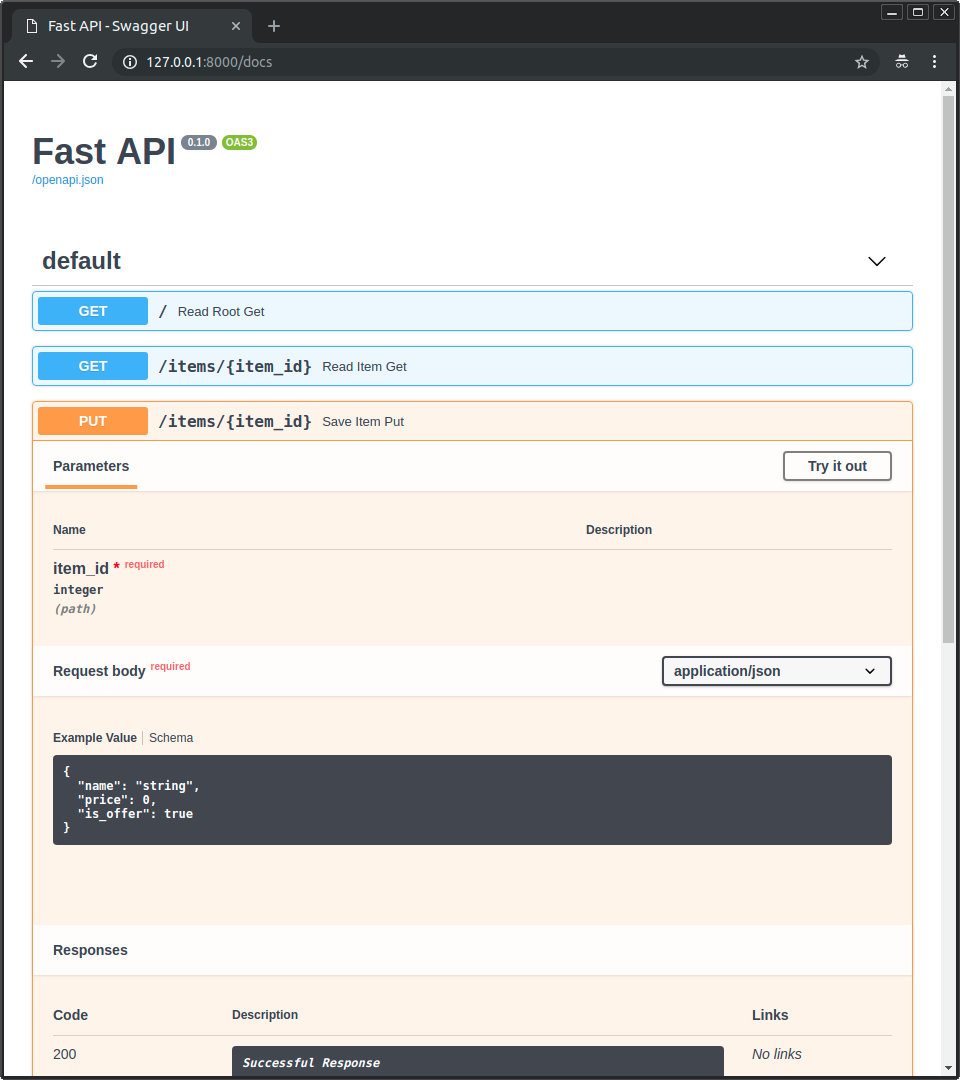 * <a href="https://github.com/Rebilly/ReDoc" class="external-link" target="_blank"><strong>ReDoc</strong></a> 提供結構性的文件,讓你可以在瀏覽器中查看。 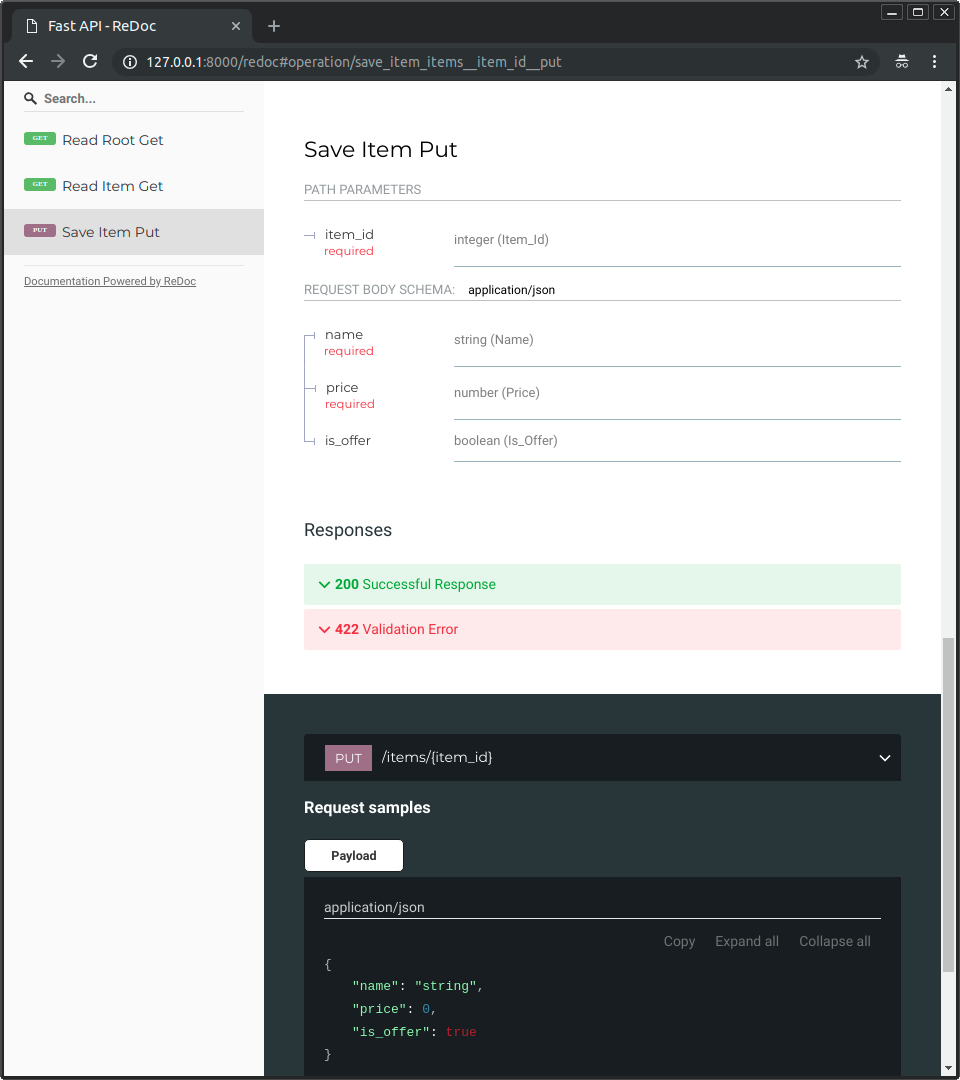 ### 現代 Python 這一切都基於標準的 **Python 型別**宣告(感謝 Pydantic)。無需學習新的語法,只需使用標準的現代 Python。
Created: Sun Dec 28 07:19:09 GMT 2025 - Last Modified: Sat Oct 11 17:48:49 GMT 2025 - 9.6K bytes - Click Count (0) -
docs/ru/docs/advanced/openapi-callbacks.md
Вы увидите документацию, включающую раздел «Callbacks» для вашей *операции пути*, который показывает, как должен выглядеть *внешний API*:
Created: Sun Dec 28 07:19:09 GMT 2025 - Last Modified: Thu Dec 11 21:25:03 GMT 2025 - 12.7K bytes - Click Count (0) -
docs/fr/docs/deployment/docker.md
Vous verrez la documentation interactive automatique de l'API (fournie par <a href="https://github.com/swagger-api/swagger-ui" class="external-link" target="_blank">Swagger UI</a>) : 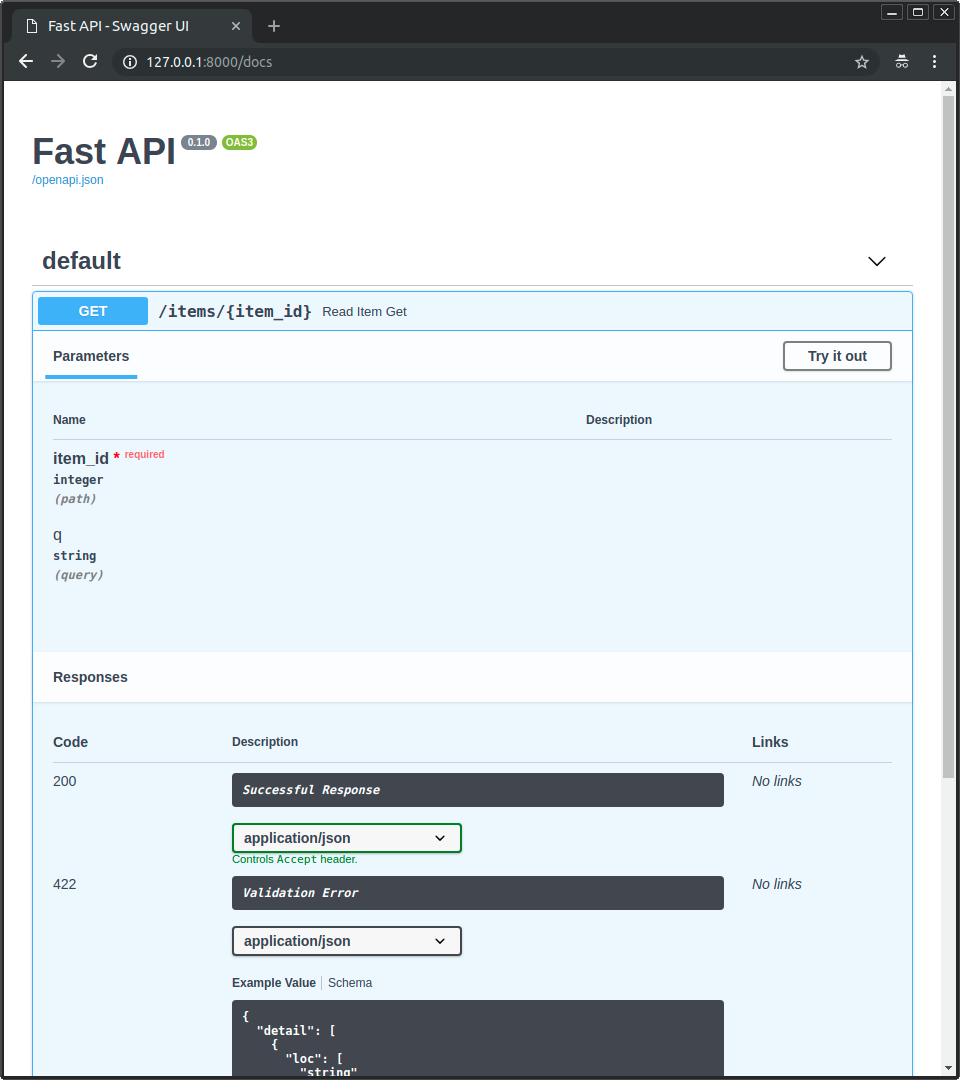 ## Documentation de l'API alternative
Created: Sun Dec 28 07:19:09 GMT 2025 - Last Modified: Sat Nov 09 16:39:20 GMT 2024 - 7.5K bytes - Click Count (0) -
docs/de/docs/advanced/security/oauth2-scopes.md
Und Sie können auswählen, auf welche Scopes Sie Zugriff haben möchten: `me` und `items`.

Das ist derselbe Mechanismus, der verwendet wird, wenn Sie beim Anmelden mit Facebook, Google, GitHub, usw. Berechtigungen erteilen:

<img src="/img/tutorial/security/image11.png">

## JWT-Token mit Scopes { #jwt-token-with-scopes }

Ändern Sie nun die Token-*Pfadoperation*, um die angeforderten Scopes zurückzugeben.
Created: Sun Dec 28 07:19:09 GMT 2025 - Last Modified: Sat Sep 20 15:10:09 GMT 2025 - 15.7K bytes - Click Count (0)